Feedback Forms
Feedback Forms are branded, BetaHub-hosted pages that collect feedback from anyone you share a link with. Each form has its own link you can drop into a Discord channel, a newsletter, or your game’s website — no widget to embed and no plugin to ship. A submission lands in your project exactly like any other: a bug form opens an Bugs report, a suggestion form opens a Suggestions, and a ticket form opens a Tickets entry.
How It Works
- Create a form — Pick what it collects: bugs, suggestions, or tickets.
- Customize it — Set who can submit, add your branding, and attach custom questions, all against a live preview.
- Turn it on and share — Enable submissions, then copy the form’s link and post it wherever your players are.
- Read the results — Submissions arrive in your project’s normal Bugs, Suggestions, or Tickets lists.
Where to Find It
Feedback forms live in the Forms & Surveys area of your project’s sidebar, alongside Surveys and hubs. Managing forms is available to Developers and project admins.
The Forms & Surveys module is enabled by default for new projects. If the area is missing, switch it on under Settings → General → Features & Modules — see Enabling Forms & Surveys.
Creating a Form
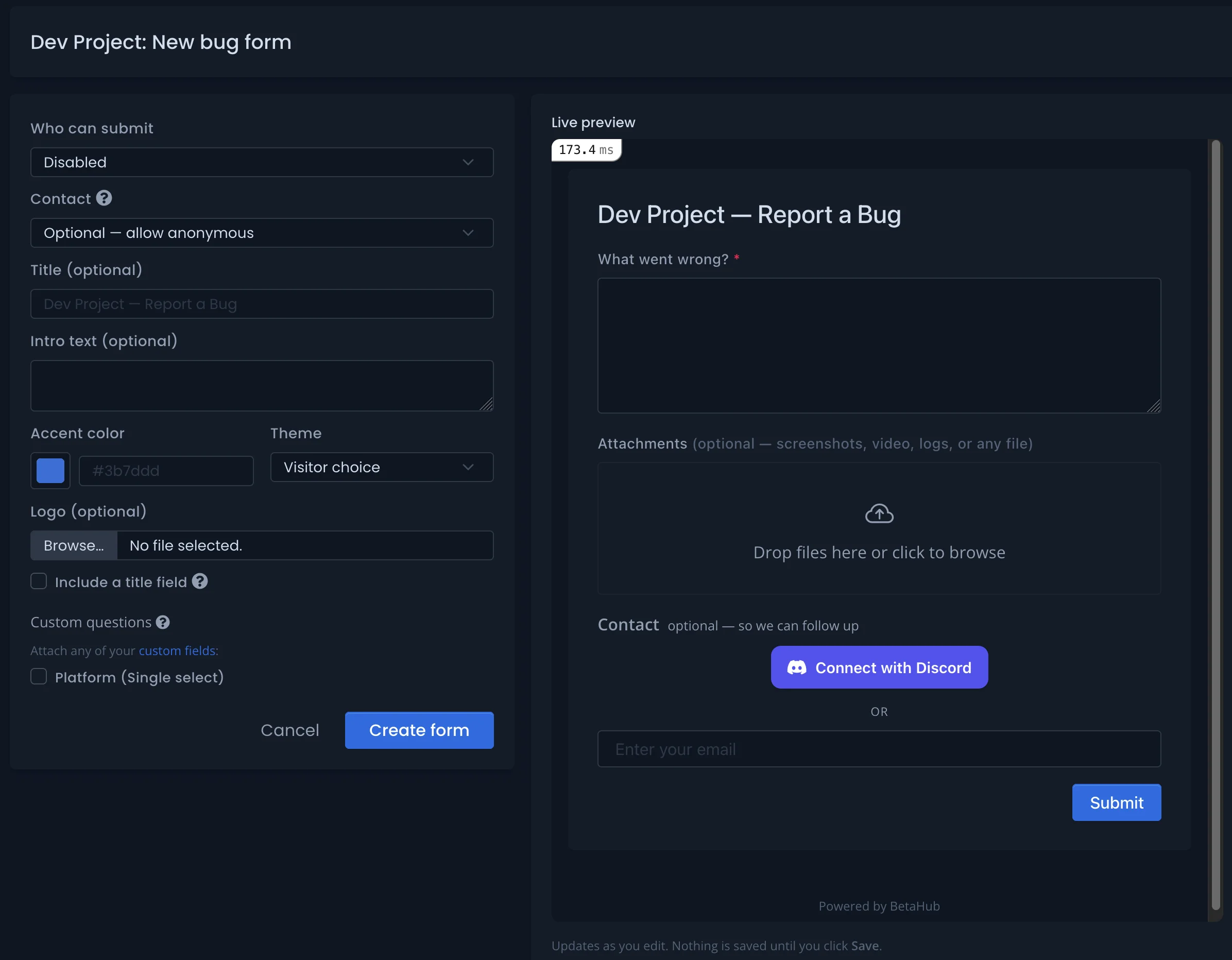
From Forms & Surveys, choose New bug form, New suggestion form, or New ticket form. The builder opens with your settings on the left and a Live preview on the right that updates as you type — nothing is saved until you choose Create form (or Save changes on an existing form).
Form Settings
**Who can submit** controls who can use the form:
- Anonymous allowed — anyone with the link can submit, no account needed.
- Sign in required — anyone with the link can submit, but must sign in first, so every submission is attributed to an account.
- Disabled — the link is turned off.
Contact decides whether you can follow up with the person who submitted:
- Optional — allow anonymous — the submitter may leave a way to reach them, or stay anonymous.
- Required — ask for an email — the form asks for an email (or a Discord connection) before it will submit.
Release (bug forms only) decides which release new reports are filed under:
- Latest published (default) — reports go to the release you published most recently. The option names that release, so you can see where reports land today.
- A specific release — reports always go there, even after you publish newer releases. Use this when one project runs several builds side by side, such as separate chapters or platforms.
If the chosen release is archived, unpublished, or deleted, the form keeps accepting reports and files them under the latest published release instead. Until you pick a release again, the form settings show a warning, the forms list marks the form Lost its release, and the project dashboard lists it under Needs your attention.
On the public page, the contact step offers a plain email field — and, when your project has Discord connected, a Connect with Discord button — so players can choose whichever they prefer. A visitor who is already signed in sees the account they are submitting as instead.
Suggestions submitted through a form go through the same automatic moderation as other suggestions; flagged ones wait for review before appearing publicly.
The rest of the settings shape the page itself:
- Title and Include a title field — set the heading players see, and optionally let them give their own report a short title.
- Intro text — a sentence or two shown above the form.
- Attachments — every form can accept optional uploads: screenshots, video, logs, or any file.
- Custom questions — attach any of your project’s player-settable custom fields (for example a Platform dropdown) to collect structured, project-specific answers.
Branding
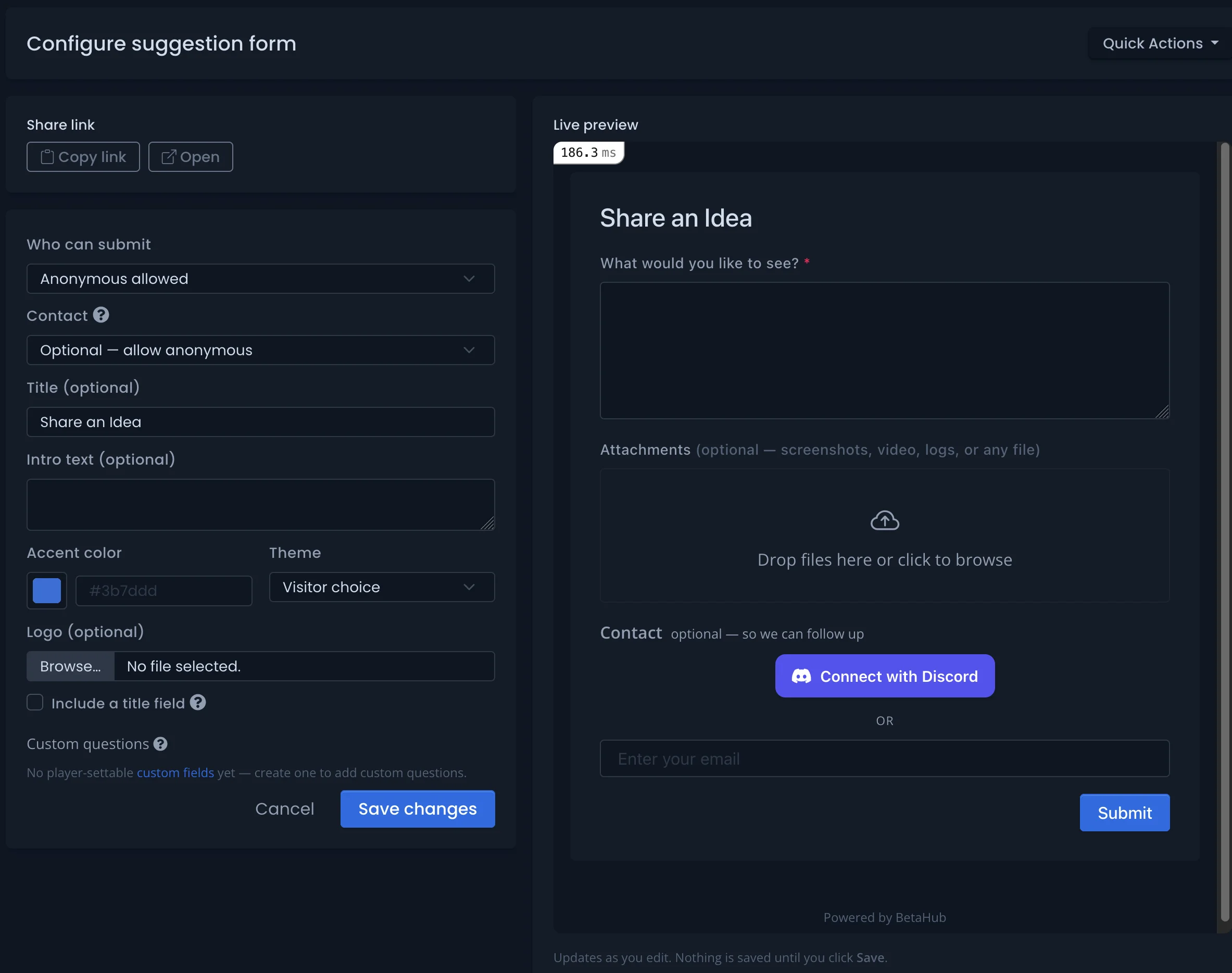
Every form can match your game’s look. In the builder you can set:
- Accent color — the color of buttons and links on the public page.
- Theme — Visitor choice (the visitor’s own light/dark preference), or force Light or Dark.
- Logo — shown at the top of the page.
The small Powered by BetaHub line at the bottom of a public form can be hidden on plans that include custom branding. On other plans it stays visible.
Sharing a Form
A brand-new form starts with its link off. Set Who can submit to Anonymous allowed or Sign in required and save — the Copy link and Open buttons then appear. Use Copy link to grab the URL, or Open to preview the live page. The form keeps accepting submissions until you switch Who can submit to Disabled again.
Linking a Form to a Public Board
The Report Bug button on the Public Bug Board and the New Suggestion button on the Public Suggestions Board can open one of your bug forms or suggestion forms, respectively, instead of the built-in sign-in form. Pick the form in the board’s settings. A linked form shows On public board in the forms list, and its settings page names the board that uses it.
Hubs
A hub groups several forms — and Surveys — under one branded link, so you can share a single “give us feedback” URL instead of many. A hub can present its members two ways:
- Chooser — a landing page that asks “what would you like to do?” and lets the visitor pick a form.
- Switcher — tabs across the top, so the visitor can move between forms on one page.
Each form or survey in a hub still keeps its own standalone link, so adding something to a hub never breaks a link you’ve already shared.
Some management screens still label hubs Portals — it’s the same feature.
See Also
- Surveys – Ask testers structured questions and read the results
- Public Suggestions Board – A public, votable board of suggestions
- Public Bug Board – Share known issues publicly
- Custom Fields – Collect structured, project-specific data