Game Engine Integration
New to BetaHub? BetaHub is a bug tracking and feedback platform for game developers. These plugins add in-game bug reporting to your Unity or Unreal project. Learn more →
Integrate BetaHub directly into your game for seamless in-game bug reporting with automatic media capture.
Overview
BetaHub provides native plugins for popular game engines that enable:
- In-game bug report forms triggered by events or user input
- Automatic video recording of recent gameplay
- Audio recording of in-game sound alongside video
- Screenshot capture of the moment the player reports
- Log file attachment for technical debugging
- Optional diagnostic components for geolocation and network latency data
- Customizable reporting workflows
- Automatic crash reporting from Unreal Engine’s built-in crash reporter (no plugin needed)
Unity WebGL: Which Integration Should I Use?
If you’re building a Unity WebGL game, you have two integration options:
| Feature | Unity Plugin | HTML Widget |
|---|---|---|
| Installation | Unity Package Manager | Single script tag |
| In-game form | Native Unity UI | Web modal overlay |
| Video recording | Yes | No |
| Audio recording | No | No |
| Screenshots | Yes (automatic) | No |
| Log files | Yes (game log) | No |
| Diagnostic components | Yes (geolocation, latency) | No |
| Performance impact | Higher (native recording) | Lower (lightweight JS) |
| Setup complexity | Medium (5-10 min) | Low (2 min) |
| Best for | Development & detailed debugging | Production & simple feedback |
💡 Recommendation:
- Use Unity Plugin during development and beta testing for maximum debugging information (videos, logs, diagnostics)
- Use HTML Widget for production releases if you want a lightweight solution with lower performance impact
For other web-based games (PixiJS, Phaser, Three.js), use the HTML Feedback Widget - a lightweight JavaScript solution that requires no plugin installation.
Unity Plugin
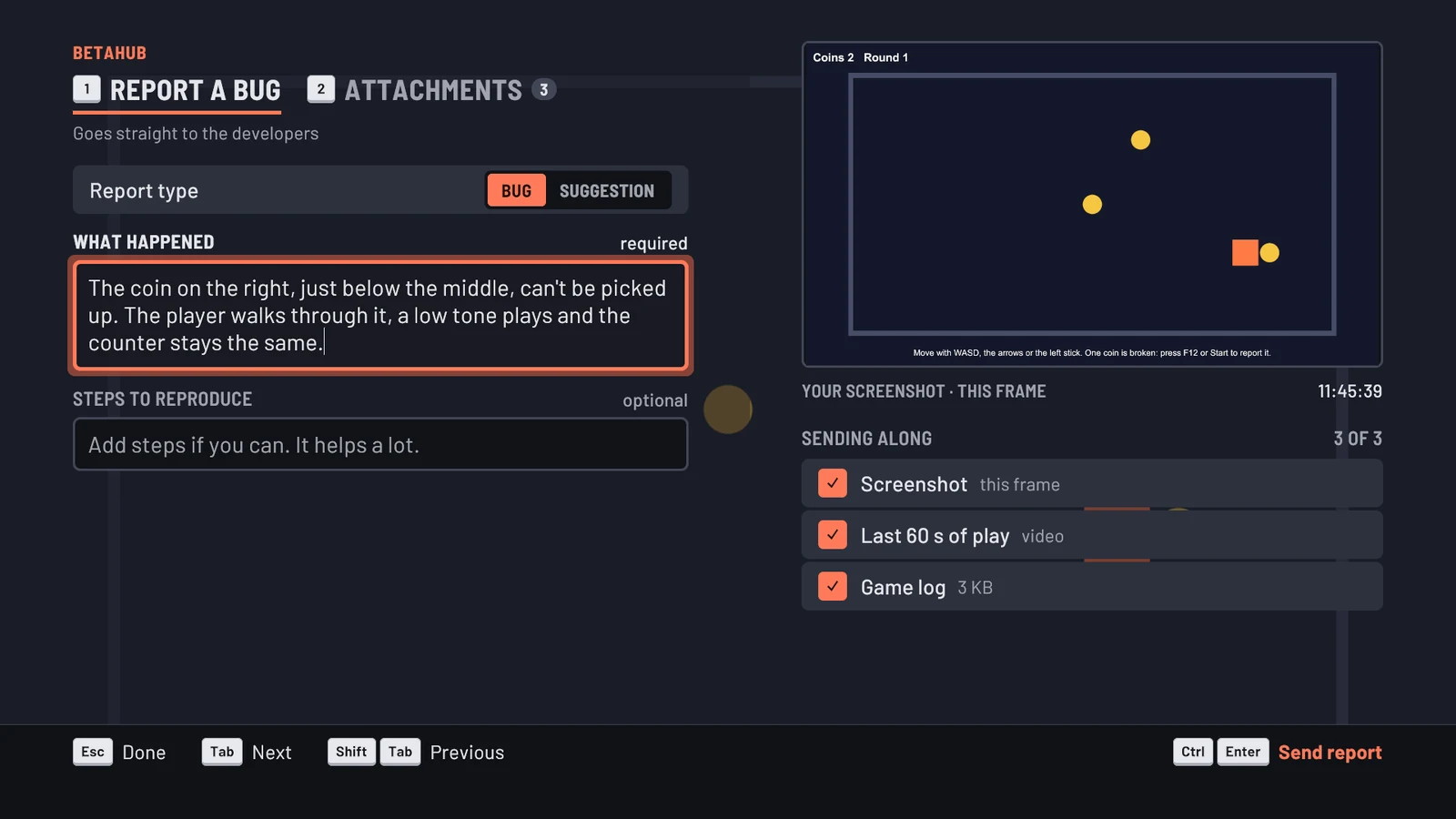
The Unity plugin adds a full-screen report form to your game. The player presses F12, or a button you choose, describes the bug or suggests an idea, and the report reaches your project with a screenshot, the last 60 seconds of play as video with sound, and the game log. The form works with keyboard, mouse and controllers, and is sized to read on a TV or a Steam Deck.
Requirements
- Unity 2022.3 or later
- A BetaHub project. You need its Project ID and a project auth token (
tkn-…) with thecan_create_bug_reportpermission (andcan_create_feature_request, off by default, if players send suggestions), both in Settings → Integrations → Auth Tokens. See Project Auth Tokens.
Try the Demo
The package comes with a small demo game, set up to send to BetaHub’s public demo project.
- In Unity, open Window → Package Manager, click + → Add package from git URL and enter:
https://github.com/betahub-io/unity-plugin.git - When Unity offers to download FFmpeg, click Download. Video in reports needs it.
- In the Package Manager, select BetaHub Bug Reporter, open Samples and import Demo. Open the
BugReportDemoscene it adds and press Play. - Collect the coins. One of them is broken on purpose: press F12 (or Start on a controller), describe the bug and send it. On the last screen, copy the link to your report.
Reports to the demo project are visible only through their link, and the project has a shared quota. Test with your own project once you have one.
Add It to Your Game
-
Install the package from the git URL above. To stay on one release, add its tag to the URL, for example
https://github.com/betahub-io/unity-plugin.git#v2.0.1. -
Download FFmpeg when Unity offers it, or later from Window → BetaHub → Download FFmpeg. It goes to
Assets/StreamingAssets/BetaHubfor Windows, macOS and Linux. - Add the form: GameObject → BetaHub → Bug Report Widget. It stays loaded across scene changes, so add it to your first scene, once.
-
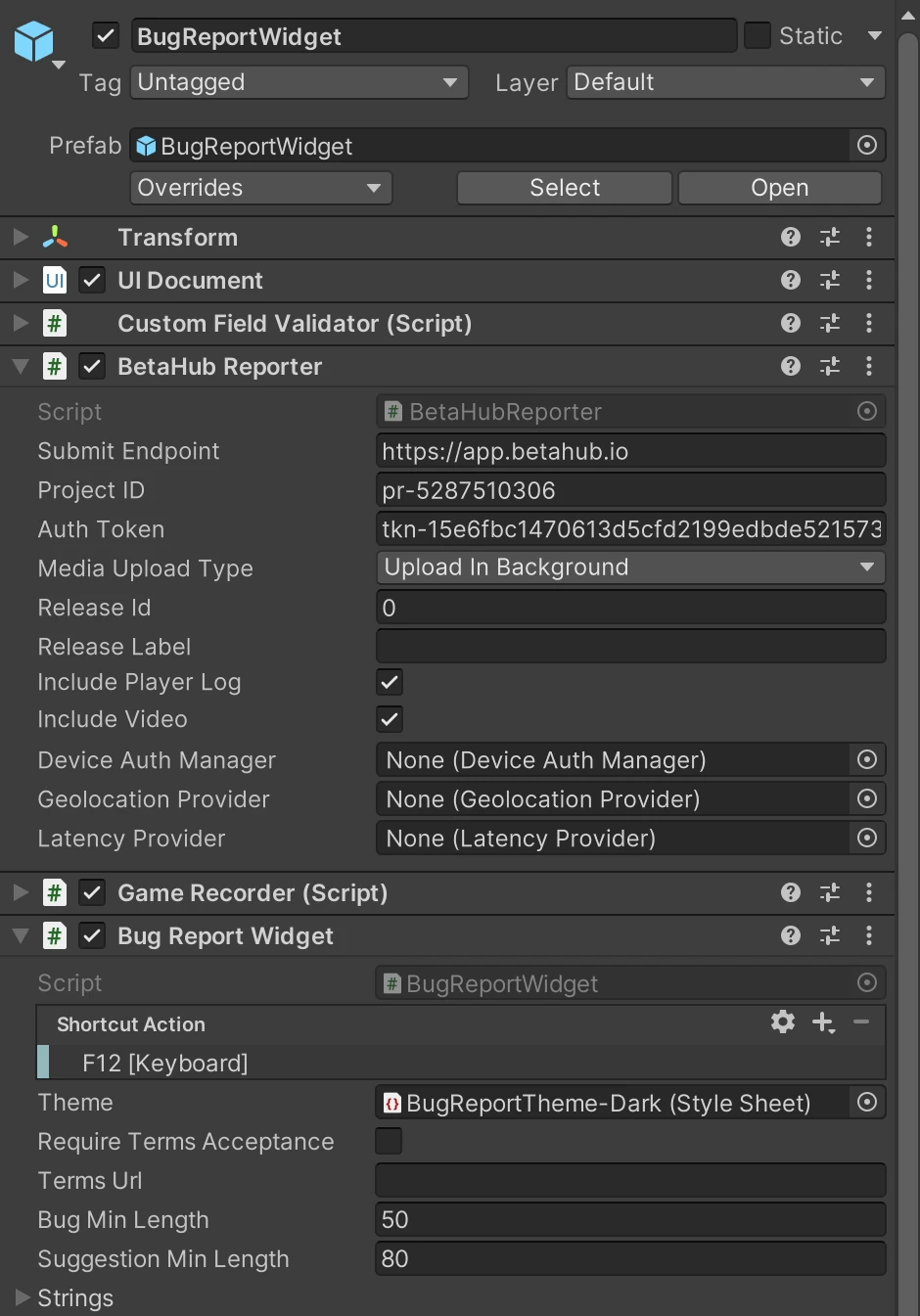
Point it at your project: on the widget’s BetaHub Reporter component, replace the demo project’s Project ID and Auth Token with yours.
- Press Play and F12.
✅ Expected result: the form covers the game. On the left, the player picks Bug or Suggestion and writes what happened; on the right is the screenshot of the moment, with the attachments to send below it.
❌ If nothing appears: look in the Console for messages starting with BetaHub:. The plugin checks its configuration at startup and says what to fix.
What Players See
- Report type: a bug report, or a suggestion (sent as a feature request with the screenshot only).
- What happened and, for bugs, Steps to reproduce. Send stays off until the description reaches your project’s minimum length (BetaHub’s defaults: 50 characters for bugs, 80 for suggestions); the field counts towards it.
- Attachments: the screenshot, the last 60 seconds of play, the game log, and anything you add. Each row has a checkbox, so the player can leave any of them out. The Attachments tab shows each one full screen.
- After sending: the report’s link to copy and an optional email field to hear when it’s fixed. Uploads continue in the background with a small progress toast, so the player is back in the game at once.
Errors show in the form’s header and keep what the player wrote, with Try again.
Configuration
BetaHub Reporter (the reporting core):
-
Submit Endpoint - BetaHub server (default:
https://app.betahub.io) - Project ID and Auth Token - Your project and its token
- Media Upload Type - Upload in the background (default) or wait for uploads before the form says Sent
- Release Id / Release Label - Attach reports to a release; empty uses the latest
- Include Player Log / Include Video - Built-in attachments (default: on)
- Device Auth Manager, Geolocation Provider, Latency Provider - Optional components, see below
Bug Report Widget (the form):
- Shortcut Action (or Shortcut Key without the Input System) - Opens the form (default: F12)
- Theme - The look, see Themes and Text
- Require Terms Acceptance / Terms Url - A terms checkbox the player must tick before sending
- Bug Min Length / Suggestion Min Length - Used when the form can’t read your project’s own minimums: a private project doesn’t show them to a project token. Keep them at your project’s settings; if your project’s description check is off, set Bug Min Length to 0.
- Strings - Every text on the form
- On Bug Report Window Shown / Hidden - Events, for example to pause your game
Game Recorder (video and audio):
- Frame Rate (default: 30) and Recording Duration in seconds (default: 60). On WebGL the browser records a fixed 60 seconds at 30 fps without sound, and the Game Recorder settings don’t apply.
- Downscale Video with Max Video Width / Height - Smaller videos from high-resolution screens
- Render FPS Overlay (default: on) / Render Cursor (default: off) - Draw the frame rate or the mouse cursor into the video
- Audio Capture - Unity Audio Listener (default), Wwise, or None. See Audio Recording
- Recording Diagnostics - Troubleshooting only: keeps the intermediate files of each recording
Select the widget and use the inspector’s Preview section to see any screen of the form in the Game view without entering Play mode.
Controllers and Steam Deck
With the Input System package active, the form takes a gamepad: the d-pad or left stick moves, the face buttons follow the prompt bar at the bottom, and the shoulder buttons switch between the report and its attachments. The prompt bar draws the buttons of the device used last: keyboard keys, Xbox, PlayStation or Switch. Without the Input System package the form takes keyboard and mouse only.
Controllers have no F12. Open the form from your pause menu:
FindObjectOfType<BugReportWidget>().Show();
On a keyboard, the arrows move, Tab goes through every item in order, and 1 and 2 switch between the report and its attachments.
When a controller player starts writing, the form asks an ITextEntryProvider for the platform keyboard. For Steam Deck and Big Picture, add the SteamTextEntry component to the widget: it opens Steam’s floating keyboard next to the field through Steamworks.NET (installed as the com.rlabrecque.steamworks.net package, or define BETAHUB_STEAMWORKS). Your game initializes Steamworks as usual.
With only the new Input System active and no EventSystem in the scene, the form adds one while it is open, so mouse clicks work. Add your own EventSystem to skip that.
Themes and Text
Six themes ship in Runtime/UI/Themes: Dark (default), Light, Neutral, Ocean, Forest and Violet. Assign one to the widget’s Theme, or call SetTheme() at runtime.
For your own colors, create a theme asset with Create → BetaHub → Bug Report Theme: pick an accent, a neutral tint, dark or light, and a corner radius. The inspector shows the derived colors with their contrast and writes a stylesheet next to the asset; assign that stylesheet to Theme. Window → BetaHub → Regenerate Theme Stylesheets rewrites them all.
Every text is editable under Strings on the widget.
Opening the Form From Code
BugReportWidget widget = FindObjectOfType<BugReportWidget>();

widget.Show();           // captures the frame, then opens the form
widget.Hide();
bool open = widget.IsVisible;

widget.OnBugReportWindowShown.AddListener(() => Time.timeScale = 0f);
widget.OnBugReportWindowHidden.AddListener(() => Time.timeScale = 1f);
Attachments
When the form opens, it lists what can go with the report: the screenshot, the recording, the game log, network and location data when those components are on, and files and rows you add. Only the rows the player leaves ticked are sent.
BetaHubReporter reporter = FindObjectOfType<BetaHubReporter>();

// Files for the next report, one row each.
reporter.AddScreenshot("/path/to/screenshot.png", removeAfterUpload: true);
reporter.AddLogFile("/path/to/custom.log", removeAfterUpload: true);
reporter.AddVideo("/path/to/video.mp4", removeAfterUpload: true);
reporter.AddFile("/path/to/slot2.sav", "Save file");   // any file, up to 50 MB

// Rows computed each time the form opens.
class HardwareRows : IAttachmentProvider
{
    public IEnumerable<AttachmentDescriptor> GetAttachments()
    {
        yield return new AttachmentDescriptor
        {
            Id = "hardware", Name = "Hardware", Meta = "GPU, RAM", Kind = AttachmentKind.Data,
            Fields = new[] { new KeyValuePair<string, string>("gpu", SystemInfo.graphicsDeviceName) },
        };
    }
}
reporter.RegisterAttachmentProvider(new HardwareRows());
-
removeAfterUploaddeletes the file once its upload was attempted. Use it for temporary files only. - Data rows are sent as a text file. A row set to
IncludedByDefault = falsestarts unticked. - Added files are cleared once a report or suggestion is created on the server. A suggestion doesn’t send them.
- BetaHub takes up to 3 videos per report, the recording included.
- Many log files? Add a ZIP or
.tar.gzof them withAddFile: your team can open it in BetaHub without downloading it. See Browsing Archives.
Custom Fields
reporter.SetCustomField("game_id", "my-game-123");
reporter.RegisterCustomFieldProvider("current_level", () => SceneManager.GetActiveScene().name);
Providers run when the report is sent and win over a static field of the same name. BetaHub creates a field the project doesn’t have yet, as text for developers (plugin 2.0.1 and later); to choose its type or show it to testers, create it first in Settings → Custom Fields. The API Examples sample has a complete script.
Player Sign-In (Optional)
Players can sign in to BetaHub through their browser. Their reports then carry their BetaHub account instead of arriving anonymously, publish without the email step, and the form shows who is reporting.
- Add the
DeviceAuthCanvasprefab (in the package’sRuntime/Prefabs) to the scene next to the widget. It has its own Sign In button. Keep it across scene loads (for example withDontDestroyOnLoad), as the widget is: otherwise sign-in ends at the next scene change. - Link it to the reporter, as
DeviceAuthExample.csin the API Examples sample does:
authManager.SetEndpoint(reporter.SubmitEndpoint);
authManager.SetProjectId(reporter.ProjectID);
authManager.SetEntityInfo("game", "My Game");
reporter.SetDeviceAuthManager(authManager);

authManager.StartDeviceAuth();   // from your own menu, if you prefer
Sign-in tokens are stored on the player’s machine and last 24 hours. With a signed-in player, the reporter needs no auth token.
Building Your Own Form
The widget is one view over BetaHubReporter. To use your own UI, talk to the reporter and follow the handle it returns:
BetaHubReporter reporter = FindObjectOfType<BetaHubReporter>();

// Capture before your form is visible, then say it is open: recording pauses.
yield return reporter.CaptureScreenshot();
reporter.NotifyReportWindowShown();
reporter.LoadDescriptionMinimums();   // fills reporter.DescriptionMinimums for your Send button

AttachmentSet attachments = reporter.CollectAttachments();
attachments.SetIncluded(BuiltInAttachments.Location, false);

ReportSubmission submission = reporter.Submit(description, steps, attachments);
submission.StateChanged += s =>
{
    switch (s.State)
    {
        case ReportSubmissionState.AwaitingPublish:
            // The report exists. Optionally add an email, then publish.
            s.SetReporterEmail("player@example.com");
            s.Publish(emailMyReport: true);
            break;
        case ReportSubmissionState.Published:
            Debug.Log("Reported: " + s.IssueUrl);
            break;
        case ReportSubmissionState.Failed:
            Debug.LogError(s.Error);
            break;
    }
};

reporter.NotifyReportWindowHidden();
-
reporter.SubmitSuggestion(description, attachments)sends a suggestion instead: the description and the screenshot. It publishes on its own and has no email step. -
submission.AttachmentUploadChangedandTryGetUploadState()report each row as Queued, Uploading (with progress), Sent or Failed. A failed row does not stop the report. - A misconfigured reporter returns a handle that has already failed, with the reason in
Error.StateChangedwon’t fire for it, so checksubmission.StateafterSubmit.
Audio Recording
The plugin records in-game audio alongside the video. It pauses with the video while the form is open, and the two are kept in sync.
| Audio Capture | Records | Setup |
|---|---|---|
| Unity Audio Listener (default) | Everything Unity’s audio system plays | None |
| Wwise | Wwise’s output | Add BETAHUB_WWISE to Player Settings → Scripting Define Symbols
|
| None | No audio | None |
Change it on the Game Recorder component.
Optional Diagnostic Components
Two components add network context to reports. They are not on the widget by default: select the widget and use Add Component. Each attaches itself to the reporter on the same GameObject and adds a row to the form, so the player can leave it out.
GeolocationProvider

Adds the player’s country and internet provider, looked up from their IP address with one request to BetaHub when the report is sent (no GPS).
- Enable Geolocation - Country code
- Enable ASN Collection - Internet provider, shown by name on the BetaHub dashboard
-
Geolocation Endpoint (default:
https://ping.betahub.io/ping.txt) and Timeout Seconds (default: 5)
The values go to the custom fields country and asn.
LatencyProvider

Measures the connection while the form is open (or continuously, in the background) and adds minimum, average and maximum ping and packet loss.
- Collection Mode - On Bug Report (default) or Continuous
- Ping Method - ICMP (default), falling back to HTTP if ICMP keeps failing
-
Icmp Target Hosts (default:
ping.betahub.io) and Http Endpoint - Min Ping Requests (default: 10), Timeout Seconds, Delay Between Requests, Ping Interval (Continuous mode)
The value goes to the custom field latency, for example ping.betahub.io: min/avg/max = 45ms/67ms/89ms (10/10 requests).
Custom Fields for Diagnostics
BetaHub creates the fields country, asn and latency the first time a report includes them (plugin 2.0.1 and later). To set their visibility beforehand, create them as Text fields in Settings → Custom Fields. At startup the plugin warns about one of another type.
IL2CPP Builds
Video in IL2CPP builds needs the native process wrapper that ships in the package’s Plugins folder:
- Add
ENABLE_BETAHUB_FFMPEGto Player Settings → Scripting Define Symbols. - Build as usual; the wrapper for Windows, macOS or Linux goes into the build.
Without the define, IL2CPP builds record no video and say so in the log. Mono builds need nothing.
Disabling the Log Capture
The plugin copies Unity’s log into each report, writing it to disk as the game runs. To turn that off, for example for a release build or several Unity instances at once, add DISABLE_BETAHUB_LOGGER to the Scripting Define Symbols. Reports then come without the game log.
Upgrading From 1.x
2.0 replaces the uGUI form (BugReportingFormCanvas and BugReportUI) with the widget.
-
Before you update, copy the Project ID, Auth Token and any other BetaHub settings you changed from the
BugReportingFormCanvasin your scenes. - After updating, delete the missing prefab, add the widget with GameObject → BetaHub → Bug Report Widget and enter the two values on its BetaHub Reporter.
-
In code, settings, attachments and custom fields moved from
BugReportUItoBetaHubReporter(ProjectID,AuthToken,AddScreenshot,AddLogFile,AddVideo,SetCustomField, …). Open and close the form withBugReportWidget.Show()andHide(); the window events are onBugReportWidgettoo. -
Sign-in: keep your
DeviceAuthCanvasand link it to the reporter (see Player Sign-In).
The plugin’s changelog lists every change.
Unreal Plugin

Installing BetaHub Unreal Plugin
Learn how to install the BetaHub Unreal Plugin in your Unreal project to enable bug reporting and feedback collection.
Watch ScreencastLooking for crash reporting? If you want to receive automatic crash reports from Unreal Engine’s built-in crash reporter (no plugin needed), see Unreal Engine Crash Reporting below.
Prerequisites
Before you begin, ensure you have:
- Unreal Engine 5.3 or above (check GitHub releases for exact compatibility). For other versions, use the source code and API.
-
Project ID (starts with
pr-, in Settings → General) and Project Token (starts withtkn-, in Settings → Integrations → Auth Tokens) - Windows (Win64): the plugin is built for Win64 only
- C++ compiler installed (Visual Studio 2022) for plugin compilation
Quick Setup
-
Install Plugin
- Create
Pluginsfolder in project root (if it doesn’t exist) - Download latest release from GitHub
- Extract to
YourProject/Plugins/BetaHubBugReporter/ - Restart Unreal Editor
- Create
-
Enable & Configure
- Click “Yes” when prompted to rebuild the plugin
- Go to Edit → Plugins → Search “BetaHub” → Enable the plugin
- Open Edit → Project Settings → Plugins → BetaHub Bug Reporter
- Enter your Project ID and Project Token
- Press F12 in Play mode to test
✅ Expected Result: When you press F12 during Play mode, the report form opens over your game:
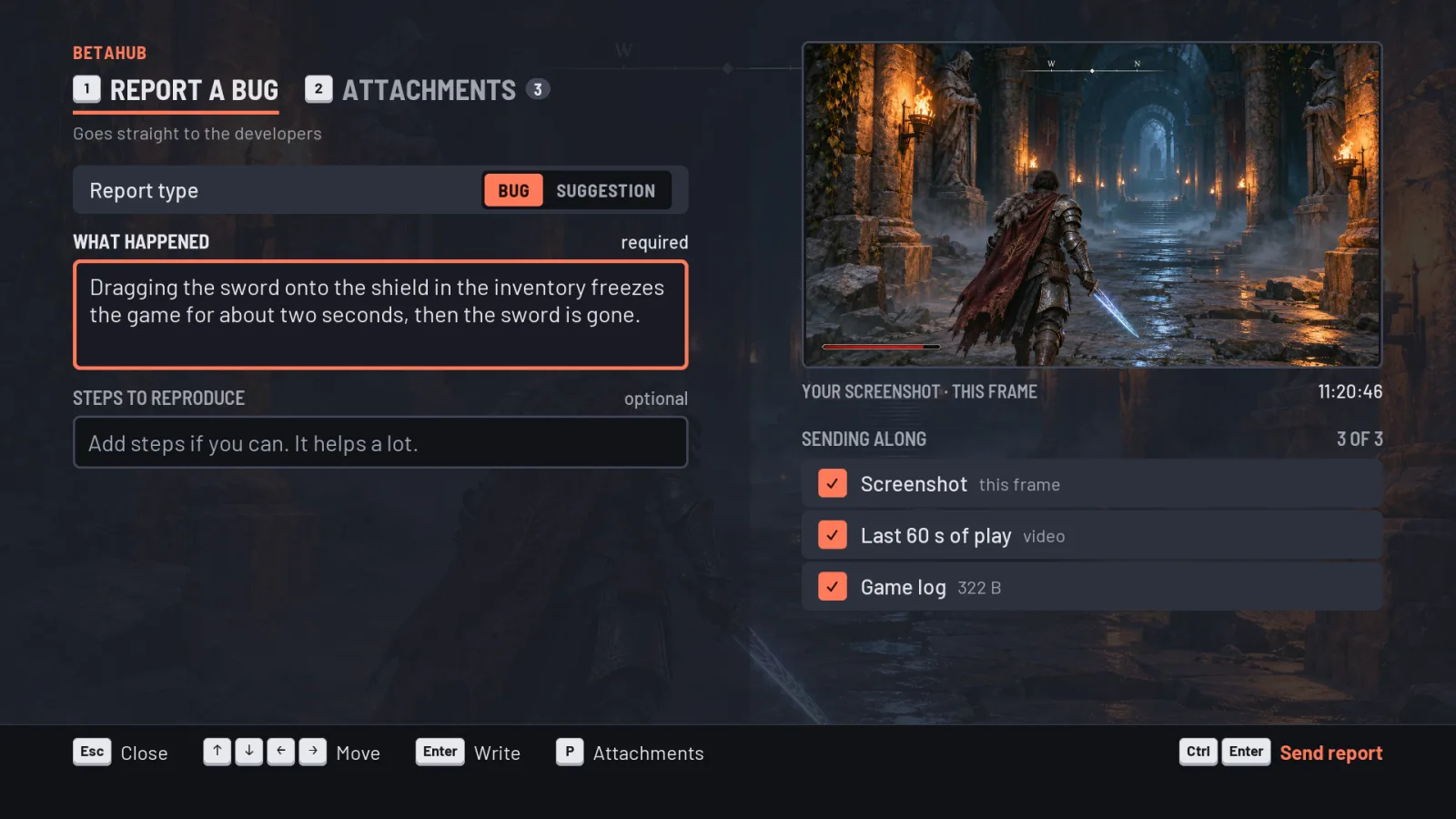
- What happened and the steps to reproduce on the left
- The screenshot, the last seconds of play and the game log on the right, each of which the player can leave out
- Every action in the prompt bar at the bottom, with Send report on the right
Plugin versions before 2.0 show the previous, smaller form. See The report form for how players use it and how to keep the previous one.
❌ If nothing appears:
- Check Output Log for errors
- Verify plugin is enabled in Edit → Plugins
- Confirm Project ID and Project Token are correct in Project Settings → Plugins → BetaHub Bug Reporter
- Ensure “Enable Shortcut” is checked in Project Settings
- See Troubleshooting below
Installation Details
Step-by-Step Installation
-
Prepare Directory
YourProject/ ├── Plugins/ (create if doesn't exist) │ └── BetaHubBugReporter/ -
Download and Extract
- Visit GitHub Releases
- Download latest
.zipfile - Extract contents to
Plugins/BetaHubBugReporter/
-
Rebuild Plugin
- Restart Unreal Editor
- Click ‘Yes’ when prompted to rebuild
- Wait for compilation to complete
-
Verify Installation
- Go to Edit → Plugins
- Search for “BetaHub Bug Reporter”
- Ensure plugin is enabled
-
FFmpeg (required for video recording)
- The GitHub release includes it (
Plugins/BetaHubBugReporter/ThirdParty/FFmpeg/Windows/ffmpeg.exe), and packaging your game copies it next to the game asbh_ffmpeg.exeautomatically - The Fab build has no FFmpeg: place
ffmpeg.exein the plugin’sThirdParty/FFmpeg/Windows/folder, wherever the plugin is installed (with Fab, in your engine’s plugins folder; v2.1.1+), for the editor, and copy it into each packaged build as<PackagedGame>/<ProjectName>/Binaries/Win64/bh_ffmpeg.exe, next to the packaged game
- The GitHub release includes it (
Configuration Settings
Project Settings → Plugins → BetaHub Bug Reporter:
- API Endpoint - BetaHub API URL (default: https://app.betahub.io)
-
Project ID - Your project identifier (required, starts with
pr-) -
Project Token - Authentication token for submissions (required, starts with
tkn-). Create in Settings → Integrations → Auth Tokens. The plugin ships with BetaHub’s demo project ID and token so it works out of the box: replace both with your project’s. - Release Label - Optional release identifier (e.g., “v1.2.3”) to categorize bug reports by version
- Media Upload Mode (v1.7+) - When the form confirms a submission and lets the player return to the game. Upload in background (default) shows the report as sent as soon as the draft is created (the previous form closes), finishing the media upload and publish in the background; Wait for upload keeps the form open until everything has uploaded and published (the pre-1.7 behavior). See Submission mode below.
- Spawn Background Service on Startup - Auto-start recording service (default: true)
- Enable Shortcut - Enable keyboard hotkey (default: true)
- Shortcut Key - Trigger key for bug report form (default: F12)
- Max Recorded Frames - Frames per second recorded into the video (default: 30)
- Max Recording Duration - Maximum video length in seconds (default: 60)
- Max Video Width - Maximum video width in pixels (default: 2000)
- Max Video Height - Maximum video height in pixels (default: 1200)
-
Report Form Widget Class - The report form’s widget class (default:
/BetaHubBugReporter/BH_ReportScreen, the report form; before 2.0:/BetaHubBugReporter/BugReportForm, the previous form) - Popup Widget Class - Custom popup widget class (default: /BetaHubBugReporter/BugReportFormPopup)
- Report Form Z Order (v2.1+) - The form’s viewport layer (default: 10000), high so a report opened from one of your menus shows over it; the form’s popups and upload toast go one layer above
- Restore Input Mode - How the game’s input mode is restored when the form or popup closes. Auto (default) gives the game back the input mode it had when the form opened: Game Only, or Game and UI with the lock and cursor it had, or a menu’s UI-only input with the focus on the widget that had it (Game and UI if that widget is gone by then; v2.1.1+; before, a UI-only menu was left in Game and UI). Game Only (FPS-style games that capture the mouse) and Game and UI (cursor or click-drag games) force that mode instead
- Debug Prefill Form (under Debug) - Fills the form with sample text when it opens, for testing submissions. No effect in Shipping builds, but a report sent with it is still a real report
Under Report Widget (v2.0+):
- Theme - One of six built-in colour themes (Dark by default)
- Theme Asset - Your studio’s colours instead: create a BH_ThemeAsset data asset with an accent colour, a neutral tint, a light or dark mode and a corner radius, and the form derives a full, contrast-checked theme from them. Overrides Theme.
- Require Terms Acceptance / Terms Url - Players must accept your terms of bug reporting before they can send; Read terms opens the URL
- Bug Min Length (v2.2+) / Suggestion Min Length - The shortest bug description and suggestion the form sends while it does not know your project’s own minimums. Since 2.2 the form reads those from BetaHub each time it opens. A private project does not share them with a project token, so there these two apply: keep them at the project’s minimum description lengths (BetaHub’s defaults are 50 and 80), or BetaHub refuses shorter reports. A project that does not check descriptions takes a bug of any length: BetaHub tells the form 1; in a private one, set Bug Min Length to 1. When BetaHub does not give the minimums, a warning in the log says so once per session.
The settings are stored in your project’s Config/DefaultGame.ini, so you can also set them there. The built-in themes are Dark, Light, Neutral, Ocean, Forest and Violet:
[/Script/BetaHubBugReporter.BH_PluginSettings]
ProjectId=pr-0000000000
ProjectToken=tkn-your-token
ReleaseLabel=v1.2.3
MediaUploadMode=WaitForUpload
Theme=Ocean
bRequireTermsAcceptance=True
TermsUrl=https://example.com/bug-reporting-terms
Submission mode
Media Upload Mode (v1.7+) controls when the report form confirms a submission and returns the player to the game:
- Upload in background (default) — The form shows the report as sent as soon as the draft is created on BetaHub (the previous form closes); the screenshot/video upload and the publish then finish in the background. The player is back in the game in about one round-trip instead of waiting out the whole submission, which can take several seconds on projects with heavy server-side processing. If the client’s own publish call never lands (the game is closed or crashes right after submitting), BetaHub auto-publishes the draft shortly afterwards, so a report is never left stranded as an invisible draft.
- Wait for upload — The form stays open, showing the upload’s progress, until the media has fully uploaded and the report is published, then shows the result. This was the behavior before 1.7.
Updating from 1.6.x: background upload becomes the default automatically. Set Media Upload Mode to Wait for upload if you need the previous blocking behavior.
The report form
Version 2.0 replaced the report form. It is a full-screen report screen over the game, which keeps running, played with a keyboard, a mouse or a controller:
- What happened on the left, what gets sent along on the right. Players switch between a bug report and a suggestion, and can leave out the screenshot, the recording or the game log. Next to the description’s label the form counts towards your project’s minimum length (0 / 50 min), and Send stays disabled until it is reached (v2.2+; before 2.2, only for a suggestion).
- Two tabs: the report and its attachments. 1 and 2 on a keyboard, or the shoulder buttons on a controller, switch between them. The attachments tab shows the screenshot, the last seconds of play and the game log full screen.
- A prompt bar at the bottom lists every action, with the glyphs of the device the player last used (keyboard, Xbox, PlayStation or Switch). The arrow keys or the d-pad move between items, Tab and Shift+Tab go through them in order, and the first prompt always goes back.
- After sending, players can add an email to hear when the bug is fixed, or copy a link to the report. When there is no email to ask for (a suggestion, or once the email is given), the link has the focus and Enter, or A on a controller, copies it (v2.2.1+).
- On Steam Deck and in Big Picture, a controller player who starts typing gets Steam’s floating keyboard, provided your game uses Steamworks. The plugin itself has no Steamworks dependency.
Players open it with the shortcut key (F12 by default). Since 2.1 the key also works in your menus and while the game is paused. It only opens the form: Esc, or B on a controller, closes it (from 2.0 to 2.2.0, pressing the key again closed the form). To open the form from your own UI, see Opening the form from your game.
The form takes keyboard and controller input only when it captures the mouse (OpenReportForm(true) or SpawnBugReportWidget(true), as the shortcut key does). Opened with false, it leaves your game’s controls alone.
Keeping the previous form. It is still included: pick BugReportForm for Report Form Widget Class, or set it in DefaultGame.ini:
[/Script/BetaHubBugReporter.BH_PluginSettings]
ReportFormWidgetClass=/BetaHubBugReporter/BugReportForm.BugReportForm_C
C++ code that reaches into the previous form’s widgets (BugDescriptionEdit, SubmitButton and the rest) through the pointer SpawnBugReportWidget returns finds them null on the new form: keep the previous form, or check them before use.
If version 2.0 gives you trouble, v1.7.1 is the last 1.x release (see roll back to a previous plugin release).
Programmatic Usage
Blueprint Integration

On the BH Game Instance Subsystem (v2.1+; get it with Get BH Game Instance Subsystem):
- Open Report Form - Open the report form from a menu, a store or a pause screen, with or without the shortcut key
- Set Custom Field / Set Custom Field Values / Remove Custom Field - Data sent with every bug report (see Custom Fields)
- Register Custom Field Provider / Unregister Custom Field Provider - A value asked for each time a bug report is sent
- Get Active Manager - The manager whose recording service runs in this game instance
On a BH Manager:
- Start Service - Begin background recording
- Stop Service - End background recording
- Spawn Bug Report Widget - Open the bug report form
- Is Service Running / Is Report Form Open (v2.1+)
C++ Integration
Add the plugin’s module to your game module’s Build.cs. The plugin builds for Win64 only, so a game that also builds for other platforms adds it for Win64 and keeps its BetaHub code behind the same condition:
if (Target.Platform == UnrealTargetPlatform.Win64)
{
    PrivateDependencyModuleNames.Add("BetaHubBugReporter");
    PublicDefinitions.Add("WITH_BETAHUB=1");
}
else
{
    PublicDefinitions.Add("WITH_BETAHUB=0");
}
Opening the form from your game
The BH Game Instance Subsystem (v2.1+) is the entry point. A “Report a bug” button in your pause menu:
#include "BH_GameInstanceSubsystem.h"

void UMyPauseMenu::OnReportBugClicked()
{
    if (UBH_GameInstanceSubsystem* BetaHub = UBH_GameInstanceSubsystem::Get(this))
    {
        BetaHub->OpenReportForm(); // bTryCaptureMouse = true: the form takes keyboard and controller input
    }
}
UBH_GameInstanceSubsystem::Get returns null when the object has no game instance (for example an editor world outside Play In Editor). On a dedicated server it returns the subsystem, but no recording service runs there. OpenReportForm returns the form already on screen if there is one, and null when it cannot open one: no recording service runs in this game instance (logged as a warning), or there is no player controller or form widget class (logged as errors).
Opened with true from a menu that uses UI-only input, the form gives the menu its input mode and focus back when it closes (with Restore Input Mode: Auto, the default; v2.1.1+; see Restore Input Mode in Configuration Settings).
Starting the service yourself
The plugin starts its recording service when the game starts. To start it yourself instead (for example only in test builds), turn off Spawn Background Service on Startup and own a manager in your game instance. The shortcut key and Open Report Form then use it:
#include "BH_Manager.h"

// UMyGameInstance.h
UPROPERTY()
TObjectPtr<UBH_Manager> BetaHubManager;

// UMyGameInstance.cpp
void UMyGameInstance::Init()
{
    Super::Init(); // the BetaHub subsystem exists only after this
    if (!IsDedicatedServerInstance())
    {
        BetaHubManager = NewObject<UBH_Manager>(this);
        BetaHubManager->StartService(this);
    }
}

void UMyGameInstance::Shutdown()
{
    if (BetaHubManager)
    {
        BetaHubManager->StopService();
    }
    Super::Shutdown();
}
A game that also builds for other platforms cannot put the UPROPERTY inside #if WITH_BETAHUB (Unreal’s header tool skips the block and the property loses its reflection, so the manager gets garbage-collected). Declare it as UPROPERTY() TObjectPtr<UObject> BetaHubManager; instead, and keep the include and the calls in the .cpp under #if WITH_BETAHUB, using Cast<UBH_Manager>(BetaHubManager).
Keep the manager in a UPROPERTY (or another strong reference) and stop it in Shutdown: a manager nothing references is garbage-collected without stopping its service cleanly. One service runs per game instance: a second one does not start (it logs a warning), and its Spawn Bug Report Widget opens the form through the first (v2.1.1+). Turn off Spawn Background Service on Startup when you start your own.
Custom Fields
Attach your own game-specific data — player level, current scene, save slot, build number, anything useful for triage — to bug reports. Custom fields show up alongside the report in the BetaHub dashboard.
Every report from the form (v2.1+)
Set the values on the BH Game Instance Subsystem, from Blueprint or C++, and update them whenever they change. Every bug report sent from the report form (the new one or the previous one) carries them. This mirrors the Unity SDK:
#include "BH_GameInstanceSubsystem.h"

if (UBH_GameInstanceSubsystem* BetaHub = UBH_GameInstanceSubsystem::Get(this))
{
    BetaHub->SetCustomField(TEXT("game_mode"), TEXT("ranked"));                     // text or single-select
    BetaHub->SetCustomField(TEXT("hardcore"), TEXT("1"));                          // boolean: "1" or "0"
    BetaHub->SetCustomFieldValues(TEXT("tags"), {TEXT("ui"), TEXT("inventory")});  // multi-select
    // Later, when a value no longer applies:
    // BetaHub->RemoveCustomField(TEXT("game_mode"));

    // Asked for its value each time a bug report is sent; skipped once this object is gone.
    BetaHub->RegisterCustomFieldProvider(TEXT("player_level"),
        FBH_CustomFieldProvider::CreateWeakLambda(this, [this]()
        {
            return FBH_CustomFieldValue::FromString(FString::FromInt(PlayerLevel));
        }));
}
In Blueprint the same nodes are Set Custom Field, Set Custom Field Values, Remove Custom Field, and Register Custom Field Provider / Unregister Custom Field Provider. A Blueprint provider is a function returning the value as a String: connect a Create Event node to the provider pin and pick or create a matching function.
OnBuildCustomFields (C++) gets the last word on every bug report’s fields, after the set values and the providers, and sees the report’s description:
if (UBH_GameInstanceSubsystem* BetaHub = UBH_GameInstanceSubsystem::Get(this))
{
    BetaHub->OnBuildCustomFields.AddWeakLambda(this,
        [this](const FBH_CustomFieldContext& Report, FBH_CustomFieldMap& Fields)
        {
            Fields.Add(TEXT("map"), FBH_CustomFieldValue::FromString(GetWorld()->GetMapName()));
            // Network numbers only where a player reports lag.
            if (Report.Description.Contains(TEXT("lag")))
            {
                Fields.Add(TEXT("ping_ms"), FBH_CustomFieldValue::FromString(FString::FromInt(GetPingMs())));
            }
        });
}
- A provider wins over a value set under the same name;
OnBuildCustomFieldswins over both. A provider that returns an empty value leaves the field out, even over a set value. - Custom fields go with bug reports, not with suggestions — as in the Unity SDK.
- A key that is not a snake_case identifier is sent anyway with a warning in the log (BetaHub also matches a field by its name); an empty key, a key with brackets, or an empty value is left out.
Your own submissions
Code that sends reports itself with SubmitReportWithMedia passes its fields per submission. Fields set on the subsystem are not added to these (UBH_GameInstanceSubsystem::CustomFieldsFor returns them, to merge in), and keys are sent as given:
#include "BH_BugReport.h"

// Plugin settings (Project ID, Project Token, etc.)
UBH_PluginSettings* Settings = GetMutableDefault<UBH_PluginSettings>();

UBH_BugReport* BugReport = NewObject<UBH_BugReport>();

// Keys are the field identifiers (snake_case) configured in your BetaHub project;
// unknown text fields are auto-created.
TMap<FString, FBH_CustomFieldValue> CustomFields;
CustomFields.Add("player_level", FBH_CustomFieldValue::FromString(FString::FromInt(PlayerLevel)));
CustomFields.Add("current_scene", FBH_CustomFieldValue::FromString(CurrentLevelName));
CustomFields.Add("tags", FBH_CustomFieldValue::FromArray({ "Bug", "UI" })); // multi-select (requires setup, see below)

// Media arrays can be empty; GameRecorder may be nullptr.
TArray<FBH_MediaFile> Videos, Screenshots, Logs;

BugReport->SubmitReportWithMedia(
    Settings,
    nullptr,                  // UBH_GameRecorder* (optional)
    TEXT("Description of the bug"),
    TEXT("Steps to reproduce"),
    Videos, Screenshots, Logs,
    []() { /* OnSuccess */ },
    [](const FString& Error) { /* OnFailure */ },
    TEXT(""),                 // ReleaseLabel (optional)
    TEXT(""),                 // ReleaseId (optional)
    CustomFields);
Use FBH_CustomFieldValue::FromString() for text and single-select fields and "1"/"0" for boolean fields, and FBH_CustomFieldValue::FromArray() for multi-select fields.
Project setup
Field identifiers must be snake_case and match a custom field’s identifier in your project (Settings → Custom Fields). How much setup you need depends on the field type:
-
Text fields — no setup required. If you send a plain string (
FromString) to an identifier that doesn’t exist yet, BetaHub auto-creates it as a developer-only text field on first submission. - Single-select, multi-select, and boolean fields — pre-create them first. Auto-created fields are always plain text, so you must create these in Settings → Custom Fields with the correct type (and, for select fields, the list of allowed options) before submitting.
For single-select and multi-select fields, every submitted value must exactly match one of the field’s predefined options. If a value isn’t in the list, the entire report submission is rejected with a validation error. If you send an array (FromArray) to a field that auto-created as text, the values are stored on a plain text field with no option validation, so the field won’t behave as a true multi-select.
Limits: up to 32 custom fields per entity type, and 4,096 characters per value. Fields or values beyond these limits are dropped (with a warning) — the report still submits.
See Custom Fields for the full field reference.
Report Modules (v2.3+)
Report modules are data the plugin itself adds to bug reports, and you switch each one on or off. A module offers rows in the report form, and the player can leave a row out like any attachment. Suggestions take none, and the previous form (BugReportForm) does not offer them.
| Module | On by default | What a bug report gets |
|---|---|---|
hardware |
Yes | How hard the machine worked in the seconds before the form opened, for as long as the gameplay video (Max Recording Duration, 60 s): a summary in the custom field performance and every second in the file betahub-performance-v1.json; one row, Performance, takes or leaves out both. Row Device sends the machine (CPU, GPU, RAM, OS), which BetaHub adds as the report’s device, so the bug list can be filtered by device
|
network |
No | Ping times to BetaHub in latency (row Network), and the player’s country and internet provider in country and asn (row Location), the same fields as the Unity plugin’s diagnostic components
|
BetaHub creates these text fields the first time a report includes them. A report waits up to 10 seconds for the modules’ data. Only the network module’s location request takes time. A module that has not answered by then is left out.
Switching Modules
Each level wins over the one before it:
- Project settings: Project Settings → Plugins → BetaHub Bug Reporter → Modules: Enable Hardware Module, Enable Network Module, and the network module’s options.
-
Command line:
-BetaHubModules=hardware,networkruns exactly the modules named and no other, and-BetaHubModules=noneruns none. Use it for a test run without a rebuild. - The game: Set Module Enabled on the BH Game Instance Subsystem (Blueprint or C++), for example once the player agrees, or only in test builds. The choice lasts for the game instance, so set it again each session. Is Module Enabled tells whether a module is switched on.
if (UBH_GameInstanceSubsystem* BetaHub = UBH_GameInstanceSubsystem::Get(this))
{
    BetaHub->SetModuleEnabled(TEXT("network"), bPlayerAgreed);
}
Hardware
The module samples the machine once a second on the game thread. The performance field reads like this:
PC: AMD Ryzen 7 5800X (16 threads), NVIDIA GeForce RTX 3070, 32 GB RAM, Windows 11 (24H2) [10.0.26100.4061]
FPS: avg 58, min 31; longest frame 212 ms
Frame time, avg: game thread 12.1 ms, render thread 8.0 ms, GPU 14.2 ms (peak 31.0 ms)
CPU: machine avg 41%, peak 97%; game avg 22%, peak 35%
VRAM: game peak 5.8 GB of 7.2 GB budget
RAM: game peak 6.1 GB; free min 2.3 GB of 32 GB
I/O: game read peak 120 MB/s, write peak 15 MB/s; disk free 112 GB
Last 60 s before the report
- FPS gives the average and the lowest of any second; the longest frame is a single frame. The GPU’s peak is its slowest second.
- CPU gives the load of the whole machine and the game’s share of it.
- VRAM gives the game’s video memory against the budget Windows gives it.
- I/O counts everything the game reads and writes, files and other I/O such as the network.
- CPU, VRAM and I/O are read from Windows.
The file goes with the report’s logs under the name betahub-performance-v1.json. It has a row for about each second. A row’s seconds is when its second ended, counted back from the form opening, as the gameplay video ends when the form opens. A long hitch stretches a row over more than a second, so line the rows up with the video by seconds, not by their order. A value nobody could read is null, and a new version of the format gets a new name.
{
  "format": "betahub-performance",
  "version": 1,
  "sample_seconds": 1,
  "ends_at": "form_opened",
  "machine": {"cpu": "AMD Ryzen 7 5800X", "logical_cores": 16, "gpu": "NVIDIA GeForce RTX 3070", "ram_gb": 32, "os": "Windows 11 (24H2) [10.0.26100.4061]"},
  "columns": ["seconds", "fps", "frame_max_ms", "game_thread_ms", "render_thread_ms", "gpu_ms", "cpu_machine_pct", "cpu_game_pct", "ram_game_mb", "ram_free_mb", "vram_game_mb", "vram_budget_mb", "io_read_mb_s", "io_write_mb_s", "disk_free_gb"],
  "samples": [
    [-59.6, 58.1, 23.4, 11.2, 8.1, 13.4, 41, 23, 6100, 2410, 5210, 7300, 1.20, 0.20, 112.0],
    ...
    [-0.6, 57.9, 24.0, 11.0, 8.3, 15.1, 39, 24, 6140, 2380, 6120, 7300, 0.90, 0.10, 112.0]
  ]
}
The GPU’s load in percent is not measured; its frame time shows how busy it is.
Device sends the PC line as device_info. After the report is saved, BetaHub adds the device it recognises in it (CPU, GPU, memory, OS) as the report’s device, unless the project’s Device field is disabled. Reading it never delays or refuses the report. Leaving Device out does not keep the machine out of the report: Performance names it too.
Network
When the report form opens, the module pings the Ping Hosts (default ping.betahub.io) over ICMP. It runs Ping Count rounds (default 10) while the player writes, each 0.1 s after the last one’s answers (a ping waits up to 5 s), and the report takes the times measured so far.
- If every host fails three times in a row, the module times requests to the Ping Http Endpoint instead. Ping Method: HTTP does that from the start.
- With Ping Continuously, it pings every Ping Interval Seconds (default 15) in the background. When the form opens, it adds the rounds a host still lacks to reach Ping Count answers. The counts then run from the start of the game, and min/avg/max cover each host’s newest 256 times.
latency has a line per host pinged, with packet loss when some pings went unanswered, for example ping.betahub.io: min/avg/max = 18ms/24ms/41ms (9/10 requests), Lost: 1/10 (10.0%). After a switch to HTTP, a second line for the endpoint follows ping.betahub.io: latency unavailable.
The module asks the Ping Http Endpoint for the player’s country and internet provider only when a report is sent with Location left in. It keeps them for the rest of the session. Send Country and Send Network Provider choose which of the two go. The network options can be set while Enable Network Module is off, for a game that switches the module on itself.
Your Own Module (C++)
Subclass UBH_ReportModule and register an instance with RegisterModule on the subsystem:
- Your module runs while the BetaHub service runs, unless
SetModuleEnabledswitches it off or a-BetaHubModuleslist leaves it out. OverrideIsEnabledByDefaultfor one that starts off. - It offers rows when the form opens (
AddAttachments; give the rows ids that start with the module id, and kindDatafor rows sent as custom fields). - When a bug report is sent, it is asked for its data (
Collect) if one of its rows is left in, or always if it offers no rows. It must callDoneonce, within 10 seconds.
A custom field your game sets itself wins over a module’s field with the same name. See the plugin’s README for a complete example.
Advanced Integration
Custom Event Triggers
#include "BH_GameInstanceSubsystem.h"

// Ask the player for a report when your game detects a problem it survived
void AMyGameMode::HandleRecoveredError()
{
    if (UBH_GameInstanceSubsystem* BetaHub = UBH_GameInstanceSubsystem::Get(this))
    {
        BetaHub->OpenReportForm(true);
    }
}
Performance Monitoring Integration
The hardware module (v2.3+) adds frame rate and machine load to bug reports sent from the report form on its own. To ask for a report when performance drops:
#include "BH_GameInstanceSubsystem.h"

// Monitor FPS and trigger reports on performance issues
void APerformanceMonitor::CheckPerformance()
{
    float CurrentFPS = 1.0f / GetWorld()->GetDeltaSeconds();

    if (CurrentFPS < MinAcceptableFPS)
    {
        if (UBH_GameInstanceSubsystem* BetaHub = UBH_GameInstanceSubsystem::Get(this))
        {
            // Sent with this and every later bug report, until removed.
            BetaHub->SetCustomField(TEXT("fps_at_prompt"), FString::SanitizeFloat(CurrentFPS));
            BetaHub->OpenReportForm(); // takes keyboard and controller input, so the player can fill it in or close it
        }
    }
}
Unreal Engine Crash Reporting
Receive crash reports from Unreal Engine’s built-in CrashReportClient automatically — no plugin required. When your game crashes, Unreal’s native crash reporter sends the report directly to BetaHub, where it lands in your project’s Crashes view with stack trace, system information, and attached files.
This feature works independently of the BetaHub Unreal Plugin. You can use both together, or use crash reporting on its own.
How It Works
- Your game crashes — Unreal Engine collects crash data (minidump, logs, system info)
- CrashReportClient sends the report — The built-in crash reporter POSTs the data to your configured BetaHub URL
- BetaHub files the crash — A crash report is created with the error message, full stack trace, system details, and attached files, and appears in the Crashes view
The crash report dialog may appear for the player after the crash, allowing them to add a description of what they were doing. A crash the player described is treated as a bug report: besides the Crashes view, it also appears on your Bugs list, with the description included. A crash nobody described stays in the Crashes view only, where your players can’t see it. Reports the crash reporter sends without showing the dialog, such as ensures, count as not described, although Unreal fills in “Sent in the unattended mode” as their description. Crashes of your team’s own Unreal Editor and commandlets are kept apart, described or not: see Editor and Commandlet Crashes.
Setup
Step 1: Create an API Token with Crash Reporting Permission
- Go to your project’s Settings → Integrations → Auth Tokens
- Click “New Token”
- Give it a name (e.g., “Crash Reporter”)
- Enable the “Can report crash” permission
- Set the daily rate limit (default: 100 per IP per day)
- Copy the token — it starts with
tkn-
See Project Auth Tokens for more details on token management.
Step 2: Configure Your Unreal Project
Add the following to your project’s Config/DefaultEngine.ini:
[CrashReportClient]
DataRouterUrl="https://app.betahub.io/crashes/unreal/tkn-YOUR_TOKEN_HERE"
Replace tkn-YOUR_TOKEN_HERE with the token you created in Step 1.
The token is embedded in the URL. While this is standard practice for crash reporting services, treat this URL as a secret in public repositories. Use conservative rate limits for distributed builds.
That’s it. The next time your game crashes, the report will appear in BetaHub.
What Gets Captured
Each crash report contains:
| Data | Description |
|---|---|
| Error message | The crash type and error (e.g., “Access Violation”, “Assert Failed”) |
| Stack trace | Full call stack shown as a debug trace with highlighted crash frame |
| System information | Game name, engine version, platform, build config, CPU, GPU, OS, crash GUID |
| Player description | Text the player entered in the crash dialog (if any) |
| Minidump file | Binary crash dump for offline debugging (.dmp, or .txt for Apple crash reports) |
| Game log | The engine log file from the session, when the build writes one. Shipping builds write no log unless built with bUseLoggingInShipping = true in the game’s Target.cs
|
| Crash context XML | Full CrashContext metadata from Unreal |
The minidump, game log and crash context are never public, even on a public project: only your team can see them, unless you share the crash through a public link. For a crash the player described, so can (while Log Files is enabled in Tester Media Visibility) your testers. Anyone can join a public project as a tester, so new public projects start with Log Files off. Unreal logs record the player’s computer and OS user names; Log Redaction Patterns can hide details like these.
Crashes View
Crashes is in your project’s sidebar for team members who can edit bugs; players don’t see it. The number next to it counts crash groups that still have unresolved crashes, and a green dot means a new kind of crash appeared in the last 7 days. Editor and commandlet crashes don’t count. Until the first crash arrives, the page explains how to set up crash reporting.
Crashes are grouped by where in the code the game crashed: the same path through your game’s code (the call stack fingerprint Unreal attaches to every report) and the same place where it crashed. That place is the first frame outside Windows, the C++ runtime and graphics drivers, so a crash inside a library your game ships, such as PhysX, is told apart by where in that library it happened. A crash that hit 14 players is one row, not 14, even when the error message differs between them (for example, a different memory address each time). Each group names that place, such as at PhysX3_x64 +0x1320f4, and shows:
| Column | Meaning |
|---|---|
| Error | The crash type and error message of the newest crash, with a New or Regressed label |
| Unresolved | Crashes in this group that are still open, in progress, or need more info |
| Last 7 days | Crashes per day over the last week; ▲ or ▼ compares the week with the one before |
| Total | All crashes in this group |
| Last crash | When the most recent one arrived |
- New: the first crash of this kind arrived in the last 7 days.
- Regressed: every crash in the group was closed, then a new one came in.
New and regressed groups come first, then the groups with the most crashes in the last 7 days. The tabs filter to Unresolved (the default), New, Regressed, or All. Archived crashes and crashes marked as duplicates aren’t counted.
Acting on crashes. Select groups and choose Close selected groups or Won’t fix, or use a group’s ⋯ menu. That changes every unresolved crash in the group; a large group takes a moment. If the crash comes back after that, the group is marked Regressed. Click a group to open its crashes as a list, with the usual status tabs and bulk actions, or use All crashes to see every crash in one list.
Sending a group to your tracker. The ⋯ menu also has Send group to … for each connected issue tracker. It creates one issue for the whole group, starting with the number of crashes, where the game crashed and a link to all of them; if the group was sent before, it shows that issue instead. To have groups sent on their own, see Unreal Crash Reports.
Who sees crashes. A crash nobody described is for your team only: it is not on the Bugs list, not on the public bug board, and players can’t open it even with a direct link.
What crashes skip. A crash nobody described doesn’t notify your developers, not even when its status changes, and gets no AI priority or tag suggestions. Your issue tracker gets it only as you choose in its Unreal crash reports setting (by default, nothing). Webhooks don’t announce it as a new bug; the New Kind of Crash event tells you when a new crash group appears.
Editor and Commandlet Crashes
Unreal’s crash reporter also sends crashes of the Unreal Editor (playing in the editor included) and of commandlets such as cooking and build tools. These are your team’s own crashes during development, never a player’s. BetaHub tells them apart by the engine mode Unreal records in each report, not by the build configuration: playtests on Development builds stay game crashes.
By default, an editor or commandlet crash:
- is kept in a view of its own: Editor and commandlet crashes at the top right of the Crashes view;
- stays off the Bugs list, even when someone described it in the crash dialog;
- notifies no one: no emails, no issue tracker, no webhooks;
- doesn’t count toward the sidebar number or its green dot.
You can still close its group or send it to your tracker by hand. To handle these crashes like game crashes, turn on Unreal Editor and Commandlet Crashes in project settings. The Crashes view lists them with the rest right away, and issue trackers set to get crashes also get the earlier ones. New ones then also notify and, when described, reach the Bugs list like game crashes; earlier ones stay off it.
The code location is specific to a build of your game: after you ship a new build, a crash that is still there starts a new group, marked New. A crash report without a call stack is grouped by its error message instead.
Supported Versions
Crash reporting works with both Unreal Engine 4 and Unreal Engine 5 (including UE 5.6). BetaHub supports both the legacy UE4 binary format and the newer UE5 CR1 format automatically.
Limits
- Maximum payload size: 50 MB (compressed crash data)
- Default rate limit: 100 crash reports per day per IP
- Rate limits are configurable per token in project settings
- If the rate limit is exceeded, CrashReportClient receives a
429 Too Many Requestsresponse
Requires at least one release. Your BetaHub project must have at least one release created for crash reports to be processed. If no release exists, crash data is accepted but no issue is created.
Best Practices
Integration Strategy
Start Simple:
- Begin with default F12 hotkey
- Test with basic bug reports
- Gradually add custom triggers
User Experience:
- Provide clear instructions to players
- Make bug reporting optional
- Avoid interrupting critical gameplay
Media Capture:
- Take screenshots before opening menus
- Keep video recordings focused and relevant
- Include relevant log files
Performance Considerations
Video Recording:
- Monitor impact on game performance
- Adjust frame rate based on target platform
- Consider memory usage for longer recordings
Background Services:
- Start services only when needed
- Stop services during intensive gameplay
- Monitor CPU and memory overhead
Testing and Validation
Development Testing:
- Test in various game states
- Verify media capture quality
- Ensure log files contain relevant information
User Acceptance Testing:
- Train testers on bug reporting process
- Gather feedback on form usability
- Iterate based on user experience
Troubleshooting
Common Issues
Unity Plugin:
-
Form Not Opening - Look for
BetaHub:messages in the Console: the plugin names the setting to fix. Controllers have no F12; open the form withShow() -
Videos Not Recording - Run Window → BetaHub → Download FFmpeg; for IL2CPP builds add
ENABLE_BETAHUB_FFMPEG(see IL2CPP Builds) - Missing prefab after updating from 1.x - See Upgrading From 1.x
Unreal Plugin:
- Plugin Not Loading - Verify extraction path and restart editor
- Missing Permissions - Check file permissions in Plugins folder
- Blueprint Errors - Ensure the plugin is enabled in Edit → Plugins
-
FFmpeg Not Found / Videos Not Recording - Ensure
ffmpeg.exeis in the plugin’sThirdParty/FFmpeg/Windows/folder (Plugins/BetaHubBugReporter/in your project, or the engine’s plugins folder with Fab), and in packaged builds at<PackagedGame>/<ProjectName>/Binaries/Win64/bh_ffmpeg.exe(see Installation Details) - Form opens behind your menu - Raise Report Form Z Order above your menu’s viewport layer (v2.1+)
- Open Report Form does nothing - Check the log for “no BetaHub service runs in this game instance”: enable Spawn Background Service on Startup, or start a manager yourself (see Starting the service yourself)
Workaround: roll back to a previous plugin release
If a plugin update breaks something for you, install the previous release while we investigate:
- Open the plugin’s GitHub Releases page — Unreal or Unity.
- Pick the release before the one you are on. The Unreal plugin is packaged per engine version, so choose the zip matching your engine (for example
BetaHubPlugin-<version>-Unreal_5.4.zip). - Replace the contents of your plugin folder (
Plugins/BetaHubBugReporterfor Unreal) with the older build, then restart the editor. For Unity, put the older tag at the end of the git URL inPackages/manifest.json, for examplehttps://github.com/betahub-io/unity-plugin.git#v1.8.2.
Please tell us on Discord that you rolled back and which version works — knowing where it started failing is usually what lets us fix it quickly.
Getting Help
For technical support:
- Join our Discord server — our team is there and it’s the fastest way to reach us
- Check plugin GitHub repositories for issues and updates
- Review the FAQ for common solutions
See Also
- Roblox Integration – In-game feedback for Roblox experiences
- HTML Widget – Web and HTML5 game integration
- Integration Setup – Connect your game to BetaHub
- Submitting Feedback – How to report bugs and ideas
- Project Auth Tokens – Token setup for in-game reporting