Submitting Feedback
Learn the different ways to submit feedback effectively in BetaHub—whether you’re reporting a bug or sharing a suggestion.
Types of Feedback
BetaHub handles two main types of feedback:
- Bug Reports – Something isn’t working as expected (crashes, glitches, broken features)
- Suggestions – Ideas for improvements, new features, or gameplay changes
Both are valuable. Developers rely on bug reports to fix issues and on suggestions to understand what players want. The submission process is similar for both.
Methods of Submitting Feedback
1. In-Game Feedback (Recommended)
For the most seamless experience, many games include BetaHub Unity and Unreal plugins. The key combination to open the feedback form is usually customizable, so check the game’s guide for instructions.
What’s automatically included:
- Screenshots – Capture the moment and draw on them to highlight issues
- Video Replay – Attach a clip of what happened (duration depends on project settings)
- Log Files – Include engine logs for technical insight
The feedback form appears quickly (depending on your internet connection) and allows you to enter details. BetaHub’s AI will check the quality of your input, so be thorough!
2. Website Submission
To submit feedback through the BetaHub website:
- Go to the project page
- Click the Report Bug button on the right side
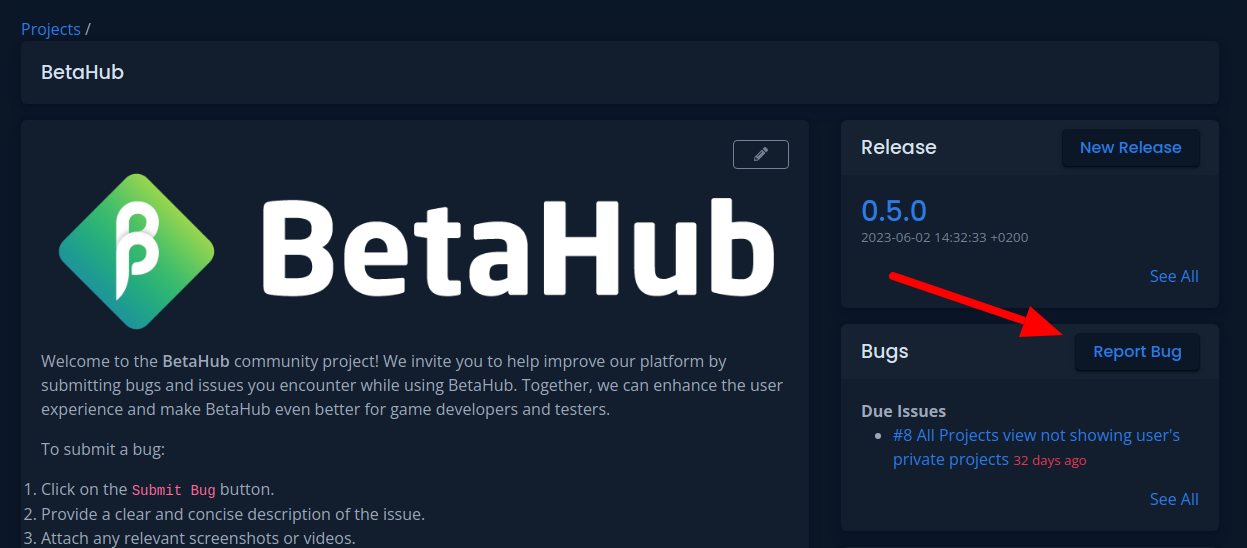
You’ll be redirected to the feedback form. Pay attention to the Submission Strength indicator on the right side.

This indicator assesses your submission quality and suggests improvements. Don’t add irrelevant information just to improve the score.
Main Form Fields
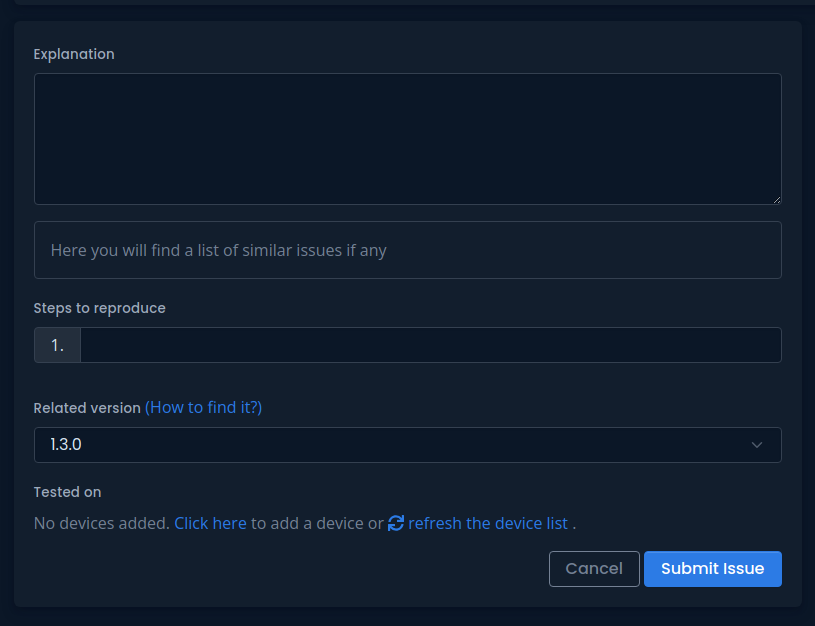
- Explanation – Describe the issue or your suggestion in your own words. This determines the report title and priority.
- Steps to Reproduce – For bugs, provide steps that lead to the issue. For suggestions, describe the context or use case.
- Related Version – Specify the game version you’re playing.
- Tested on – Choose the device you’re using.
3. Discord Submission
Using Discord Commands
Type one of these commands in any Discord channel where the BetaHub bot is present:
-
/report– Submit a bug report -
/suggest– Submit a suggestion or feature request
This opens a dialog for entering your feedback.
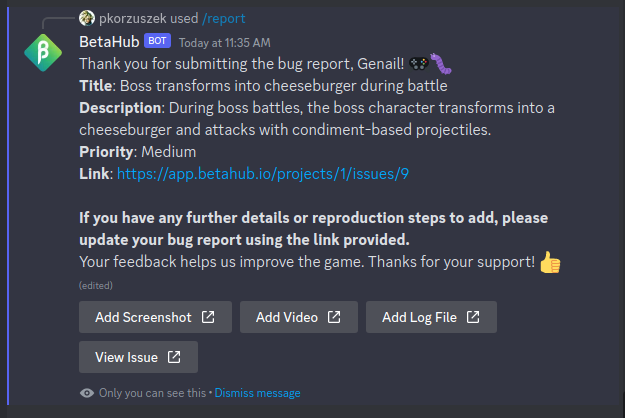
The bot will thank you and provide a link to your submission. If something’s unclear, the bot will indicate what needs more detail.
Automatic Feedback Detection
If the project has “Listen Mode” enabled, the bot can automatically detect feedback from conversations and ask if you want to submit it formally.
Adding Media to Your Feedback
Screenshots
For visual bugs, you can attach screenshots:

- Click “Attach Screenshot”
- Select your file from the upload form
- Use the screenshot editor to highlight relevant parts

Use the drawing tools to highlight issues, add comments, and approve the file.
Video Files
Attach video files to show bugs in action:
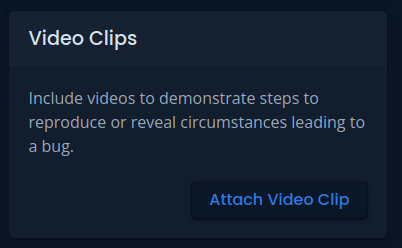
- Click to attach video
- Select file from your disk
- Wait for processing if format conversion is needed

Keep video files reasonably sized to avoid upload timeouts.
Log Files
Include log files for technical bugs:
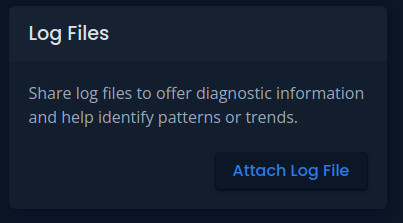
- Attach the log file
- Confirm the file was retrieved immediately after noticing the error
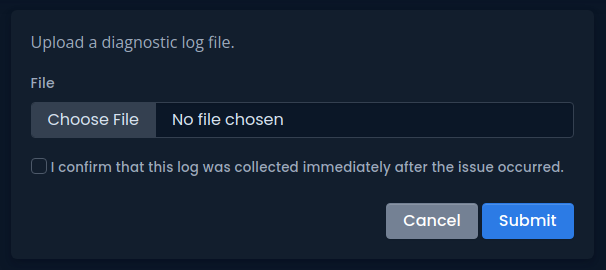
This confirmation is crucial as some engines clear logs between launches.
Writing Effective Feedback
BetaHub automatically generates titles from your description, so focus on writing a clear explanation of what happened or what you’re suggesting.
For Bug Reports
Description: Write a clear explanation of the problem. Include:
- What you were doing when the bug occurred
- What you expected to happen
- What actually happened
Good: “When I open the inventory in Level 3 by pressing ‘I’, the game freezes for a few seconds and then crashes to desktop. This happens every time I try it.”
Avoid: “Game broken” or “It crashed”
Steps to Reproduce: List the exact steps to trigger the bug:
- Start the game
- Navigate to Level 3
- Press ‘I’ to open inventory
- Game crashes to desktop
The more precise your steps, the easier it is for developers to find and fix the issue.
For Suggestions
Description: Explain your idea and why it would help:
- What problem does your suggestion solve?
- How would it improve your experience?
Good: “It would be great to have an option to remap controls. I’m left-handed and the current layout is uncomfortable for long play sessions.”
Avoid: “Controls bad” or “Add more options”
Tips for Both
- Be specific – Include exact error messages, locations, or levels
- Be objective – Describe what happens, not what you think caused it
- Add context – What were you trying to achieve?
Supported File Formats
Screenshots
- PNG, JPG, JPEG
Videos
- MP4, MOV, WEBM, AVI
Log Files
- TXT, LOG
Managing Your Submissions
Viewing Past Submissions
To view or edit previous submissions:
- Go to BetaHub Bugs
- Select a submission title
- Press the edit button
Responding to Developer Questions
Developers may request additional information. You’ll receive notifications via:
- Website notifications
- Email alerts
- Discord messages (if enabled)
Use the provided link to return to your submission and add requested information.
Next Steps
Learn about Contributing Effectively to understand the feedback lifecycle and best practices for ongoing participation.
Getting Help
If you need help submitting feedback:
- Check the FAQ for common questions
- Ask in the project’s Discord server
- Contact our support team through Discord
See Also
- Joining Projects – How to access test projects
- Discord Bot – Community feedback via Discord
- Game Engines – Unity and Unreal integration
- Roblox Integration – In-game feedback for Roblox
- HTML Widget – Web and HTML5 game integration
- Managing Feedback – How developers handle reports