Roblox Integration
New to BetaHub? BetaHub is a bug tracking and feedback platform for game developers. This integration adds an in-game feedback widget to your Roblox experience. Learn more →
Add a polished in-game feedback form to your Roblox experience, letting players submit bug reports and feature suggestions directly to BetaHub.
Overview
The BetaHub Roblox widget provides:
- Unified feedback form — Bug reports and feature suggestions in a single dark-themed UI
- Dual log capture — Both client and server console logs attached to bug reports, with server logs automatically marked as developer-private
- Client-side validation — Minimum character counts with live feedback indicators
- Server-side error display — API rejection reasons shown to the player
- Per-player rate limiting — Configurable cooldown between submissions
-
Secure credentials — Uses Roblox
HttpService:GetSecret()for API tokens
| Suggestion Form | Bug Report Form |
|---|---|
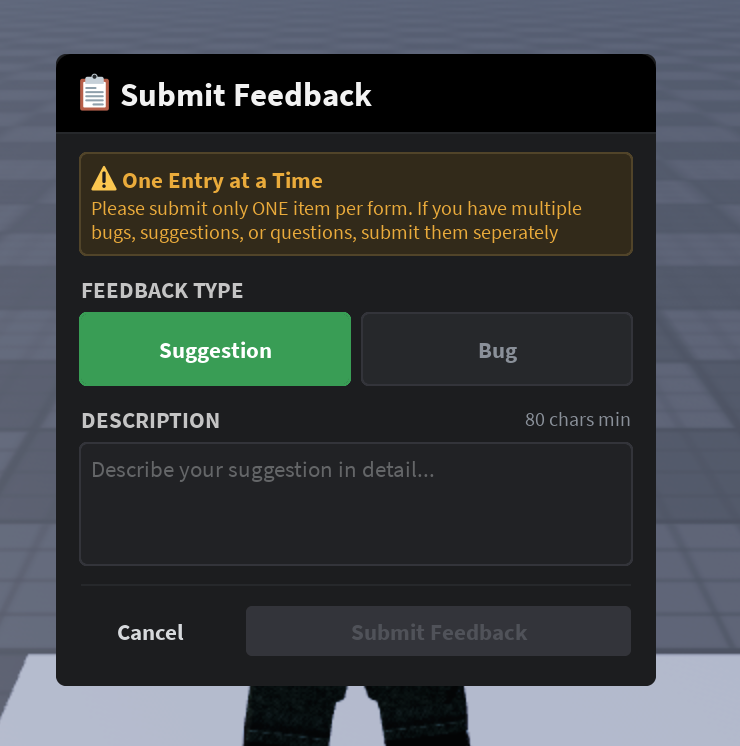 |
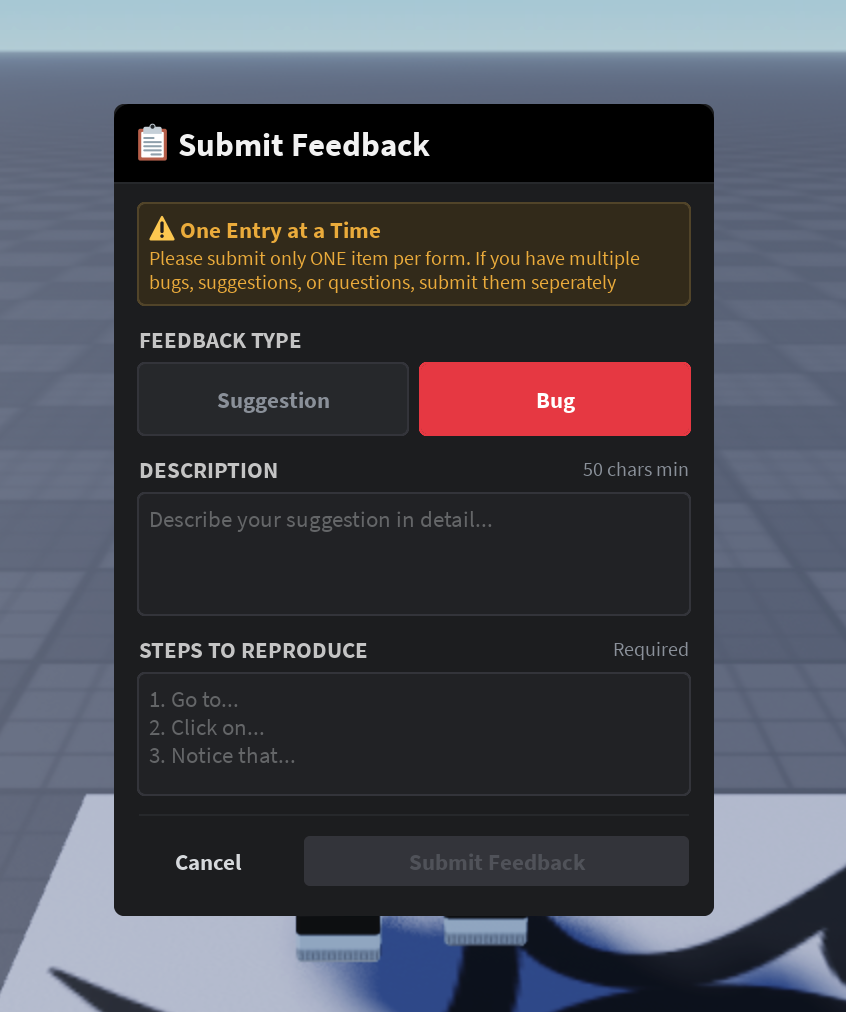 |
Prerequisites
Before you begin, ensure you have:
- Roblox Studio installed
- A BetaHub project — Create one if you haven’t already
-
Project ID — Find it in Settings → Integrations → Auth Tokens tab (format:
pr-XXXXXXXXXX) -
Project Auth Token — Create one in Settings → Integrations → Auth Tokens with
can_create_bug_reportandcan_create_feature_requestpermissions. See Project Auth Tokens for details.
Quick Start
1. Download the Widget
Download the latest BetaHubFeedbackWidget.rbxl from the GitHub repository.
2. Import into Your Game
- Open
BetaHubFeedbackWidget.rbxlin Roblox Studio alongside your game - In the Explorer panel, copy these instances from the widget file into your game:
| Instance | Copy To | Purpose |
|---|---|---|
StarterGui > BetahubFeedbackUi |
Your game’s StarterGui
|
The feedback form UI |
StarterGui > ExampleOpenCloseButton |
Your game’s StarterGui
|
Example toggle button |
ReplicatedStorage > BetahubFeedback |
Your game’s ReplicatedStorage
|
Client-server communication |
ServerScriptService > BetahubFeedbackServer |
Your game’s ServerScriptService
|
Server-side API handler |
3. Configure Secrets
The widget uses Roblox’s built-in secrets management to keep your API credentials secure.
- In Roblox Studio, go to File > Experience Settings > Security
- Under Secrets, add two entries:
-
Name:
BH_PROJECT_ID— Value: Your BetaHub project ID (e.g.,pr-5287510306) -
Name:
BH_AUTH_TOKEN— Value: Your BetaHub project auth token (e.g.,tkn-...)
-
Name:
4. Enable HTTP Requests
- In Roblox Studio, go to File > Experience Settings > Security
- Enable Allow HTTP Requests
5. Test It
Press Play in Roblox Studio. Click the “Example Open or Close Ui” button to open the feedback form. Try submitting a suggestion or bug report — you should see it appear in your BetaHub project dashboard.
Configuration
The server script (BetahubFeedbackServer) has configurable values at the top:
| Setting | Default | Description |
|---|---|---|
API_BASE_URL |
https://app.betahub.io |
BetaHub API endpoint |
RATE_LIMIT |
20 |
Seconds between submissions per player |
RESET_RATE_LIMIT_ON_FAILURE |
false |
Whether to reset the rate limit when a submission fails. Keep false to prevent request spam if the API is down. |
How It Works
Bug Reports
When a player submits a bug report:
- The player selects Bug, fills in a description (minimum 50 characters) and steps to reproduce
- The client captures a snapshot of its console log
- The server submits the bug report to BetaHub’s API
- If successful, the server uploads the client console log as an attachment
- The server also captures and uploads its own server console log, automatically marked as developer-private so it is hidden from players
- The player sees a success or error confirmation
Note: Server logs are automatically marked as developer-private — players will never see them. Only project members with developer access can view server logs in BetaHub.
Feature Suggestions
When a player submits a suggestion:
- The player selects Suggestion and fills in a description (minimum 80 characters)
- The server submits the suggestion to BetaHub’s API
- The player sees a success or error confirmation
Data Submitted
| Field | Bug Reports | Suggestions |
|---|---|---|
| Description | Yes | Yes |
| Steps to reproduce | Yes | — |
| Client console logs | Yes (auto-captured) | — |
| Server console logs | Yes (auto-captured, developer-private) | — |
| Roblox user ID | Yes | Yes |
| Report source | “in-game” | — |
Customizing the Toggle Button
The included ExampleOpenCloseButton is a simple example. You can trigger the feedback form from anywhere in your game by toggling the MainFrame.Visible property:
local betahubUi = game.Players.LocalPlayer.PlayerGui:WaitForChild("BetahubFeedbackUi")
betahubUi.MainFrame.Visible = not betahubUi.MainFrame.Visible
Tip: The included ExampleOpenCloseButton checks whether a confirmation prompt is open before toggling. Consider adding a similar guard in your custom implementation — you may also want to check for the error prompt (ErrorPrompt.Visible).
For example, you could open the feedback form from a settings menu, a keybind, or a custom button in your game’s UI.
Troubleshooting
“HTTP FAILURE” Error
- Ensure Allow HTTP Requests is enabled in Experience Settings > Security
- Verify your internet connection in Studio
Submissions Fail With Credentials Error
- Check the Output console for warnings about missing secrets — the server logs a clear message at startup if
BH_PROJECT_IDorBH_AUTH_TOKENare not configured - Verify the project ID starts with
pr-and the token starts withtkn- - Ensure the auth token has
can_create_bug_reportandcan_create_feature_requestpermissions
“Error Occurred” After Submitting
- The error message from the API is displayed in the error prompt
- Common causes: description too short (server-side validation), invalid project ID, expired auth token
Widget Doesn’t Appear In-Game
- Verify
BetahubFeedbackUiis inStarterGui - Check the Output console for script errors
- Ensure
BetahubFeedbackRemoteFunction exists inReplicatedStorage
Getting Help
For support:
- Check the FAQ for common solutions
- Join our Discord server for community help
- Open an issue on GitHub
See Also
- Game Engine Integration – Unity and Unreal plugins
- Integration Setup – Connect your game to BetaHub
- Project Auth Tokens – Token setup for in-game reporting
- Submitting Feedback – How players report bugs